Getting Started
Install OpenScribe
Download the latest stable release for your Mac and drag OpenScribe.app to your Applications folder.
Not sure which Mac you have? Open Apple menu > About This Mac and look for Apple Silicon or Intel.
Install with Homebrew
brew install --cask streichsbaer/tap/openscribe
OpenScribe is distributed as a signed and notarized app for direct download.
Launch it once
Open OpenScribe from Applications and grant microphone access when macOS prompts you. After launch, the app lives in your menu bar, so the key thing to look for is the OpenScribe icon near the clock.
On a fresh install, OpenScribe opens a setup assistant in Settings and recommends a path for your Mac. Apple silicon Macs start on Local only, which transcribes on your Mac with Parakeet Ultra. Intel Macs start on Groq cloud, which needs a Groq API key and is much faster there than local models. You can switch paths, or skip the assistant and return later from Settings or the menu bar.
Your first recording
- Press
Fn + Spaceto start recording. - Speak for a few seconds.
- Press
Fn + Spaceagain to stop. - Click the menu bar icon to open the popover and see your transcript.
Your transcript appears in the Live tab. If polish is enabled, switch between the polished and raw text there.
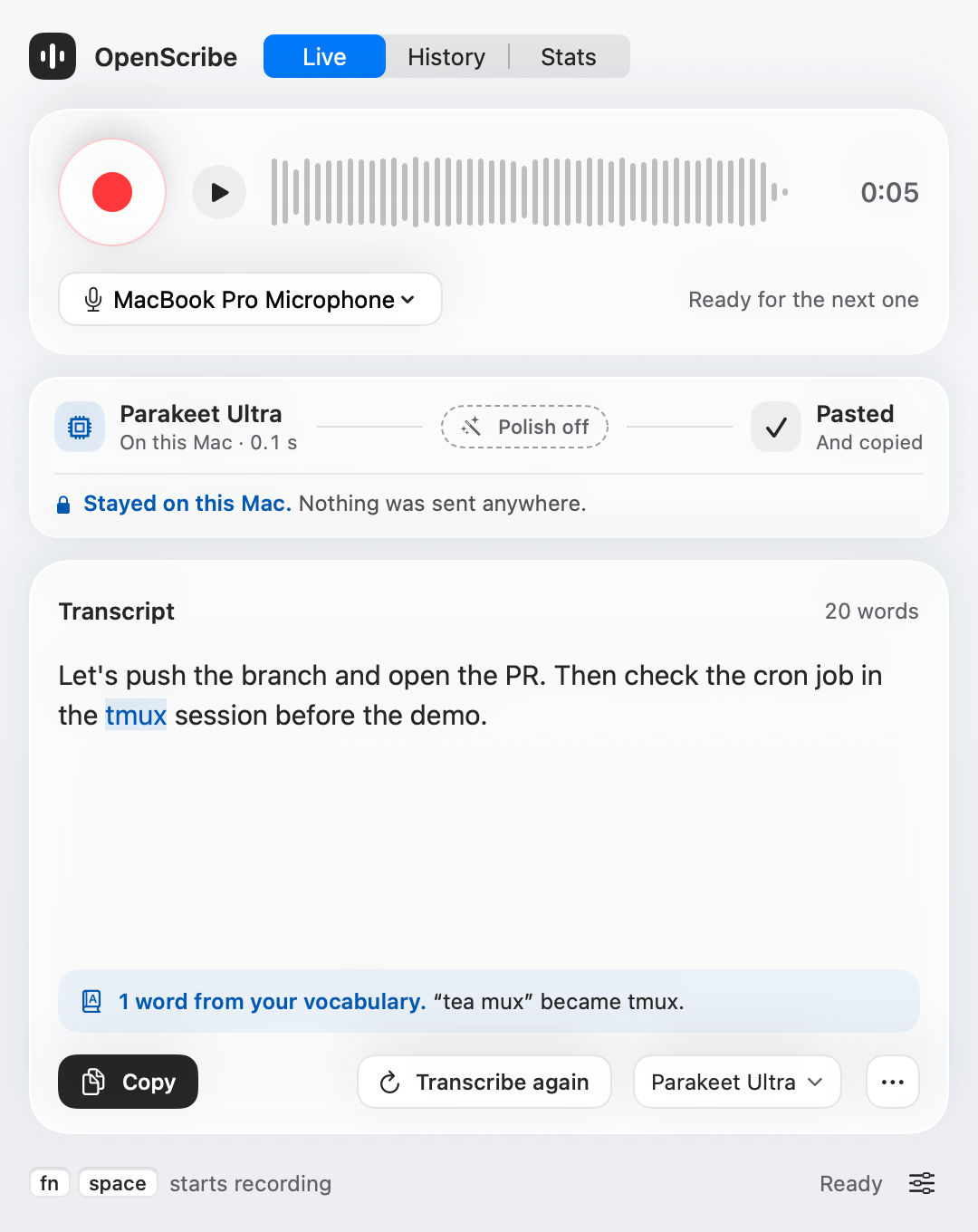
If you do not see any text after stopping, check the menu bar icon state. A no-audio icon usually means macOS recorded silence or the wrong microphone.
Tune the basics next
If you just want a quick smoke test, the default local Parakeet provider is enough to confirm that recording works. It downloads a 600 MB model the first time.
If you want the best day-to-day setup after launch, continue with Using Free Tiers and configure Groq transcription plus Groq polish on openai/gpt-oss-120b.
If you want OpenScribe to clean up grammar and formatting after transcription, turn on polish in Settings > Polish and then tailor the output with Custom Rules.
If the default shortcuts do not fit your workflow, open Settings > Hotkeys and adjust them before you build muscle memory.
For a complete tour of the popover, menu bar states, and every settings tab, use the UI Reference.
Building from source
If you want to build and run OpenScribe from source, see Development Setup.