How It Works
Every OpenScribe session follows the same path: record, transcribe, polish. Once you know that loop, the app becomes easy to read because the menu bar icon and the Live tab are always telling you where the current session is.
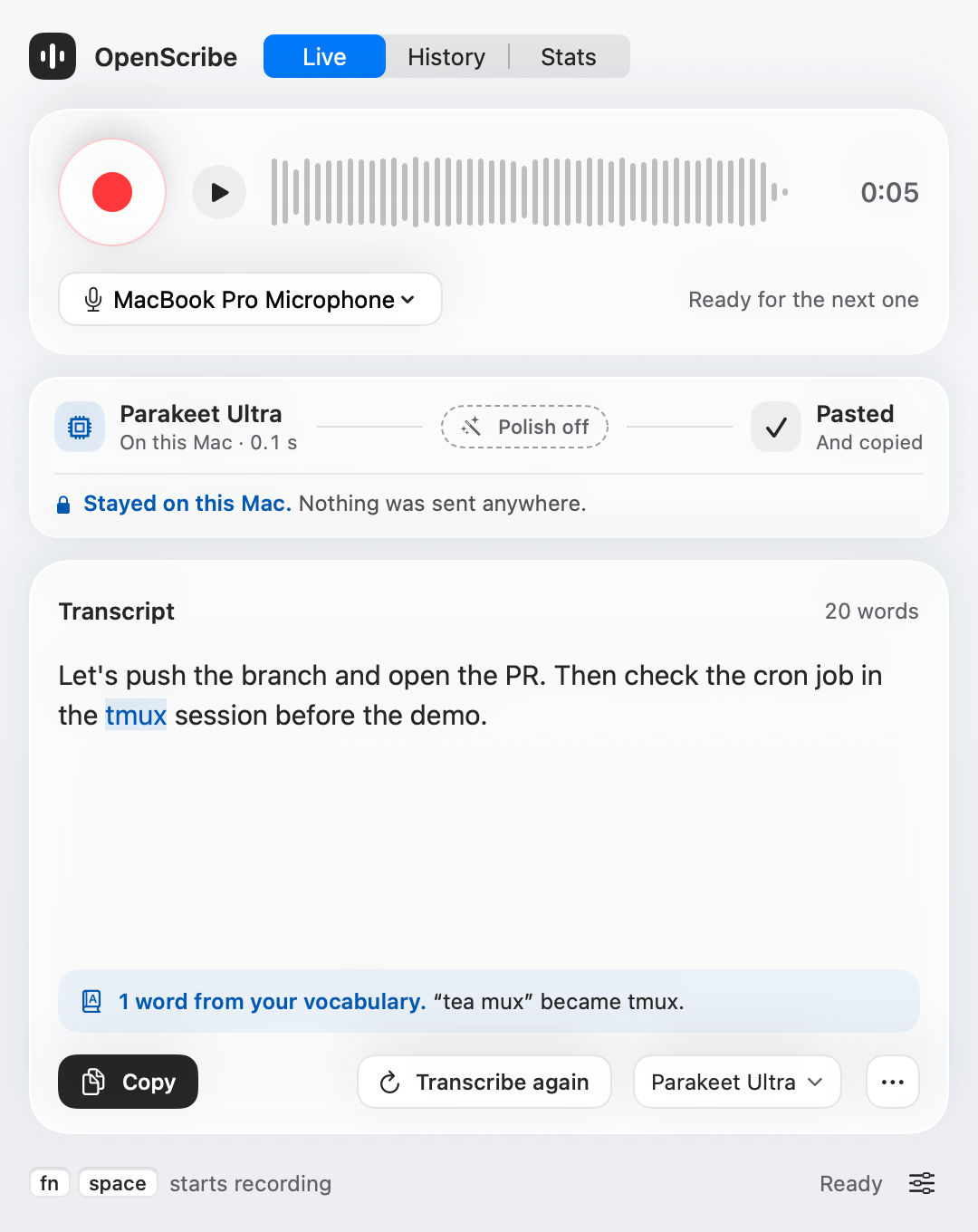
1. Record first
Press the start or stop hotkey, Fn + Space by default, to begin recording. The menu bar icon changes immediately so you can tell that audio capture is live.
While you speak, OpenScribe writes audio to disk incrementally. When you press the hotkey again, recording stops and the audio file is finalized.
If you choose OpenAI Realtime as the transcription provider, OpenScribe also streams audio while recording so the raw transcript can update in the Live tab before you stop.
2. Then transcribe
After recording stops, OpenScribe sends the audio through your selected speech-to-text provider. By default that is Parakeet, which runs entirely on your Mac with no network calls.
The raw transcript appears in the Live tab as soon as transcription completes. With OpenAI Realtime, the final transcript is committed after recording stops, even if interim text was already visible while you were speaking.
Realtime capture keeps only short protected quiet edges in its network buffer. If the stream is interrupted or cannot keep up, OpenScribe retries from the saved recording instead of discarding the session.
OpenScribe uses the same adaptive speech detector for the live input indicators and the final recording check. Quiet speech can remain usable even when it produces a small meter movement.
If the recording has no usable speech signal, OpenScribe skips transcription and shows audio input guidance. For usable file-based recordings, it sends providers a temporary copy trimmed around the detected speech with a small amount of protected audio before and after it. The original session recording remains unchanged.
3. Polish if you want cleanup
If polish is enabled, OpenScribe sends the raw transcript to a language model that cleans up grammar, formatting, and structure. The polish step also uses your custom rules from Rules/rules.md, so you can steer tone, spelling, and formatting.
The polished text appears in the Live tab when the step finishes. Switch to Raw to see the original, or to Changes to see what polish changed word by word.
If polish is disabled, the polished output is a direct copy of the raw transcript.
What the app shows while it works
The menu bar icon reflects the current pipeline state:
- Idle: ready for a new recording.
- Recording (working): audio capture is active with usable input.
- Recording (no audio): recording is active but no microphone signal is detected.
- Transcribing: speech-to-text is running.
- Polishing: the language model is cleaning up the transcript.
The popover header shows the current stage, and the route in the Live tab shows how long each step took and whether it ran on this Mac or in the cloud.
After the pipeline completes
Every completed session saves four artifacts, so you can revisit what happened later:
audio.m4a-- your recording.session.json-- metadata (provider, model, timestamps).raw.txt-- the raw transcript.polished.md-- the polished output.
If copy-on-complete is enabled (the default), the polished text is automatically copied to your clipboard.
Re-processing
You can re-run transcription or polish on any session from the Live or History tab. That makes it easy to compare providers or models without recording the same note twice.
Continue
- Full UI reference: UI Reference
- Provider options: Providers and Models
- Where your files are stored: Your Data