Your Data
OpenScribe stores its working files locally on your Mac. Nothing is synced anywhere unless you explicitly choose a cloud provider for transcription or polish.
Find what you need from the app
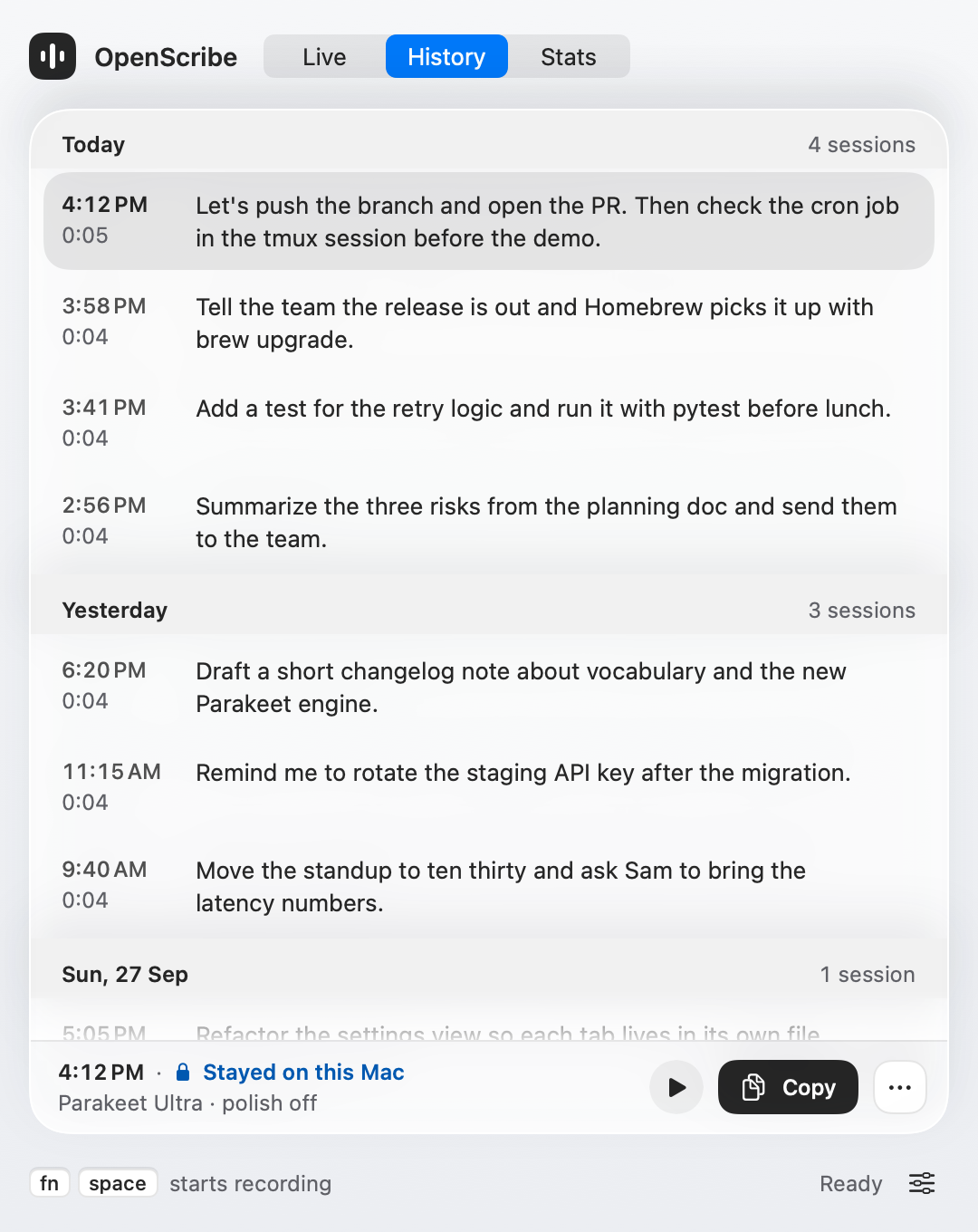
If you want to revisit a past session, start in the History tab. Select a session to replay or copy it, or use its menu to transcribe it again or reveal the session folder in Finder.
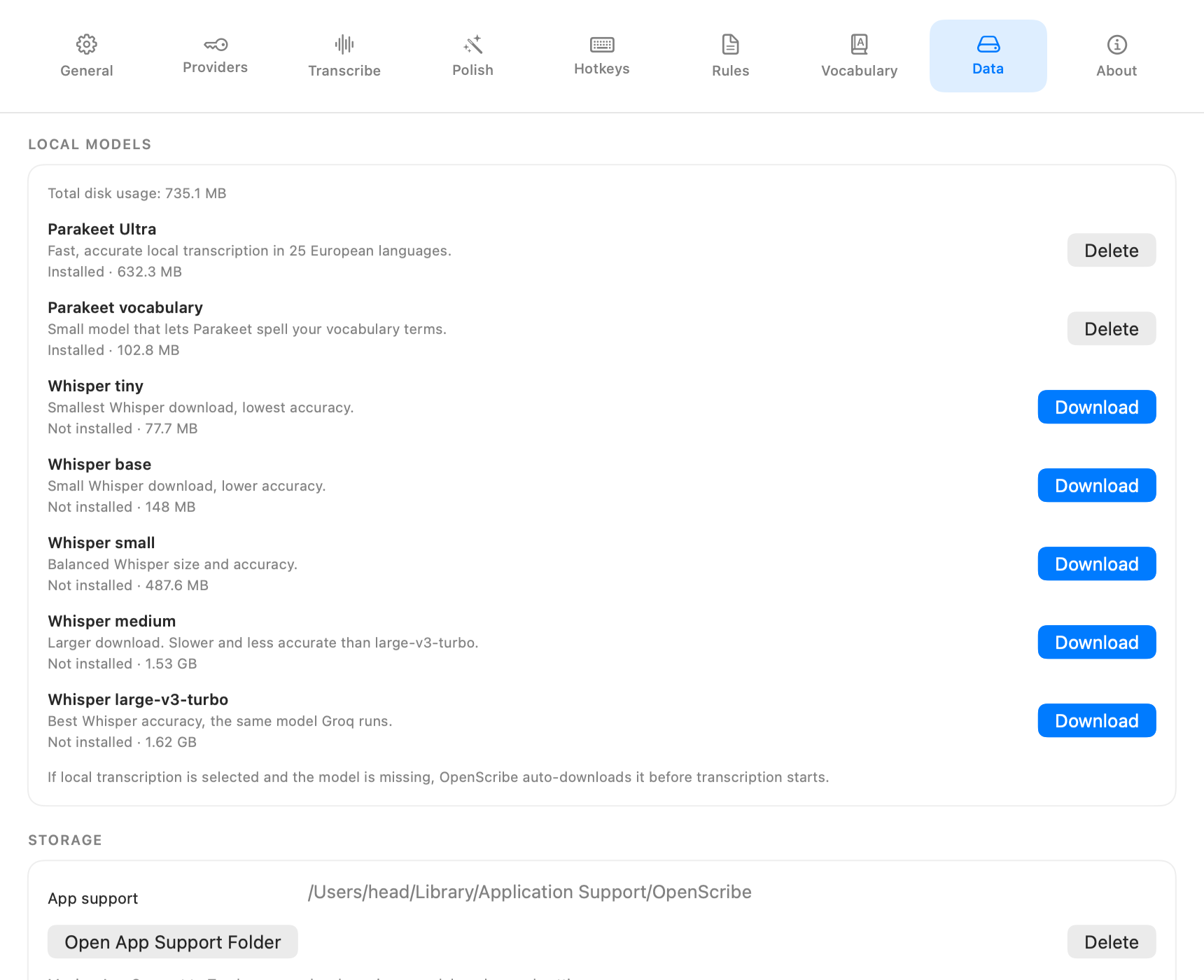
If you want the top-level app folder, model management, or cleanup actions, open Settings > Data.
Where data lives
All app data lives under:
~/Library/Application Support/OpenScribe/
You can open this folder directly from Settings > Data.
Session recordings
Each recording session gets its own folder, organized by date:
Recordings/
  2026-03-06/
    143052-<session-id>/
      audio.m4a        -- your recording
      session.json     -- session metadata (provider, model, timestamps)
      raw.txt          -- raw transcript from speech-to-text
      polished.md      -- polished output from the language model
Every session keeps all four files, so you can replay audio, re-read transcripts, or re-process with different settings at any time.
Other data
- Rules/rules.md -- your custom polish rules.
- Rules/rules.history.jsonl -- timestamped history of rule edits.
- Rules/vocabulary.txt -- your vocabulary terms.
- Stats/usage.events.jsonl -- usage metrics (session counts, durations, provider usage).
- Models/parakeet/ -- downloaded Parakeet models.
- Models/whisper/ -- downloaded whisper.cpp models.
- Config/settings.json -- app preferences.
Managing storage
Use Settings > Data to install or delete local models and check their disk usage.
Use the History tab when you want to delete specific sessions while keeping the rest of your archive intact.
If you want to remove everything, Settings > Data includes an option to move all app data to Trash.
Technical details
For the full file layout specification, see the Storage Contract.
Continue
- How recordings are created: How It Works
- Custom polish rules: Custom Rules
- Full settings reference: UI Reference