UI Reference
This page is the user-facing reference for the menu bar icon, popover tabs, and every Settings tab in OpenScribe.
Menu bar
The menu bar icon is your home base while OpenScribe is running.
- Left click toggles the popover.
- Right click opens a menu with:
SettingsQuit OpenScribe
Menu bar icon states
The icon changes as your recording moves through the pipeline.
Idle
OpenScribe is ready for a new recording.

Recording (working)
Audio capture is active and OpenScribe is receiving usable microphone input.

Recording (no audio input)
Recording is active, but OpenScribe is not receiving a usable signal.

Transcribing
Recording has stopped and speech-to-text is running.

Polishing
The raw transcript is complete and the optional polish step is running.

Popover tabs
Open the popover to see the current run and browse recent sessions.
Live tab
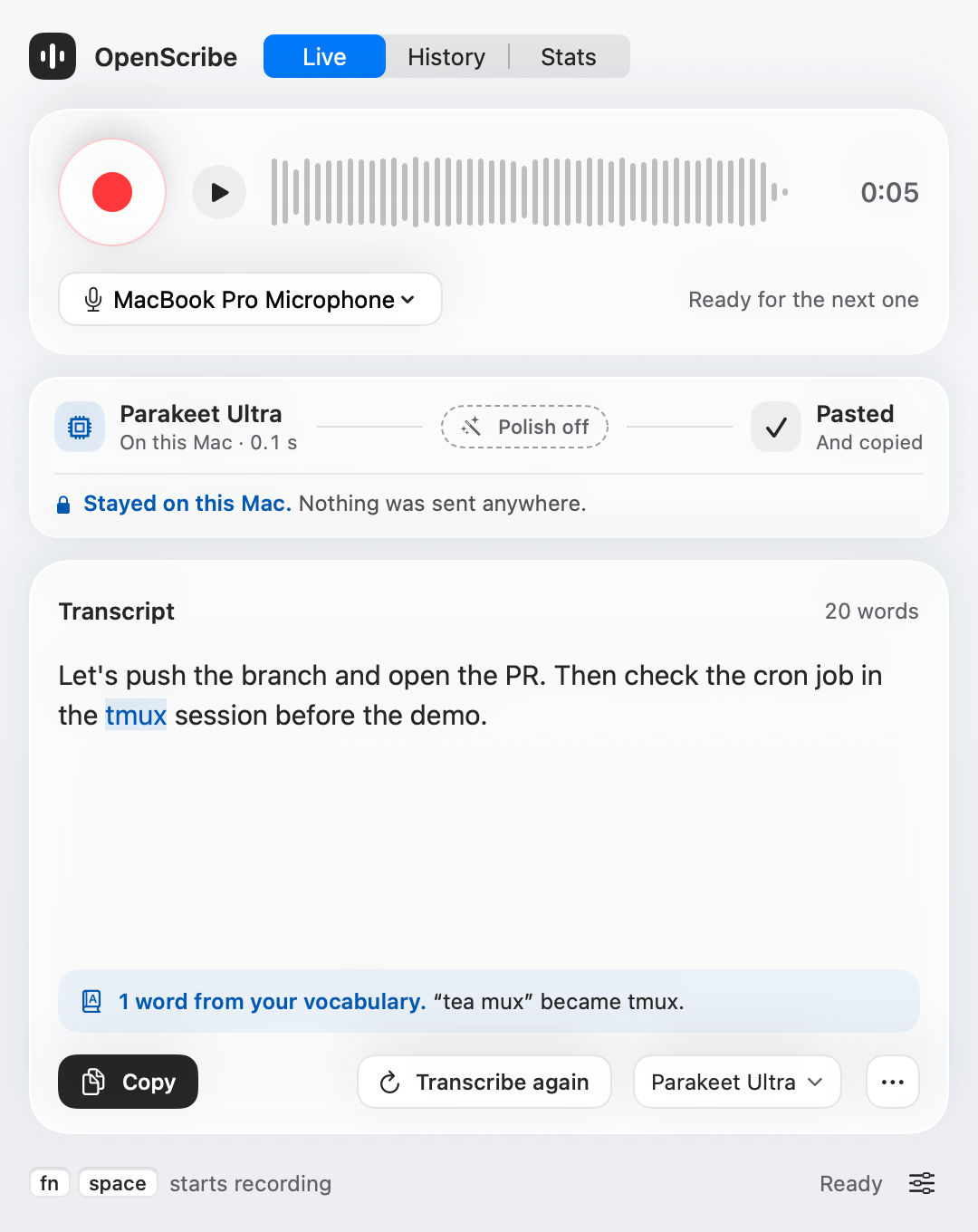
The Live tab records and shows the current session. The top card holds the record button, a live waveform, the timer, and the microphone picker. The route below it shows each step and where it ran: blue means on this Mac, orange means the cloud, and one sentence says what left the Mac. The transcript card shows your text with vocabulary fixes highlighted. With polish on, switch between Polished, Raw, and Changes. Use Transcribe again or Polish again to rerun a step with another model.
History tab
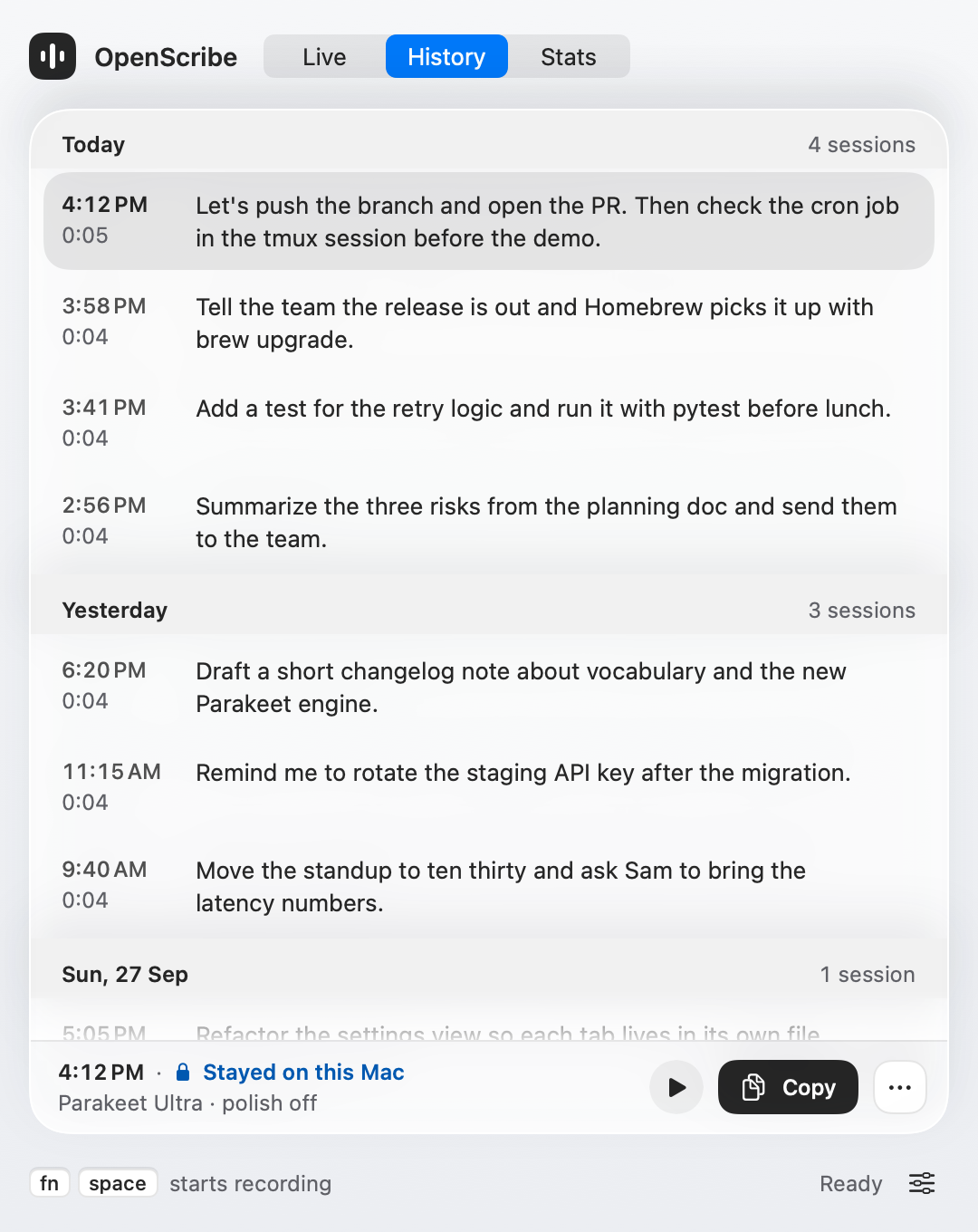
The History tab groups past sessions by day. Select a session to play it, copy it, or open the menu to open it in Live, transcribe it again, reveal it in Finder, select several, or move it to the Trash. A cloud badge marks sessions that sent audio or text to the cloud, and failed sessions offer Retry.
Stats tab
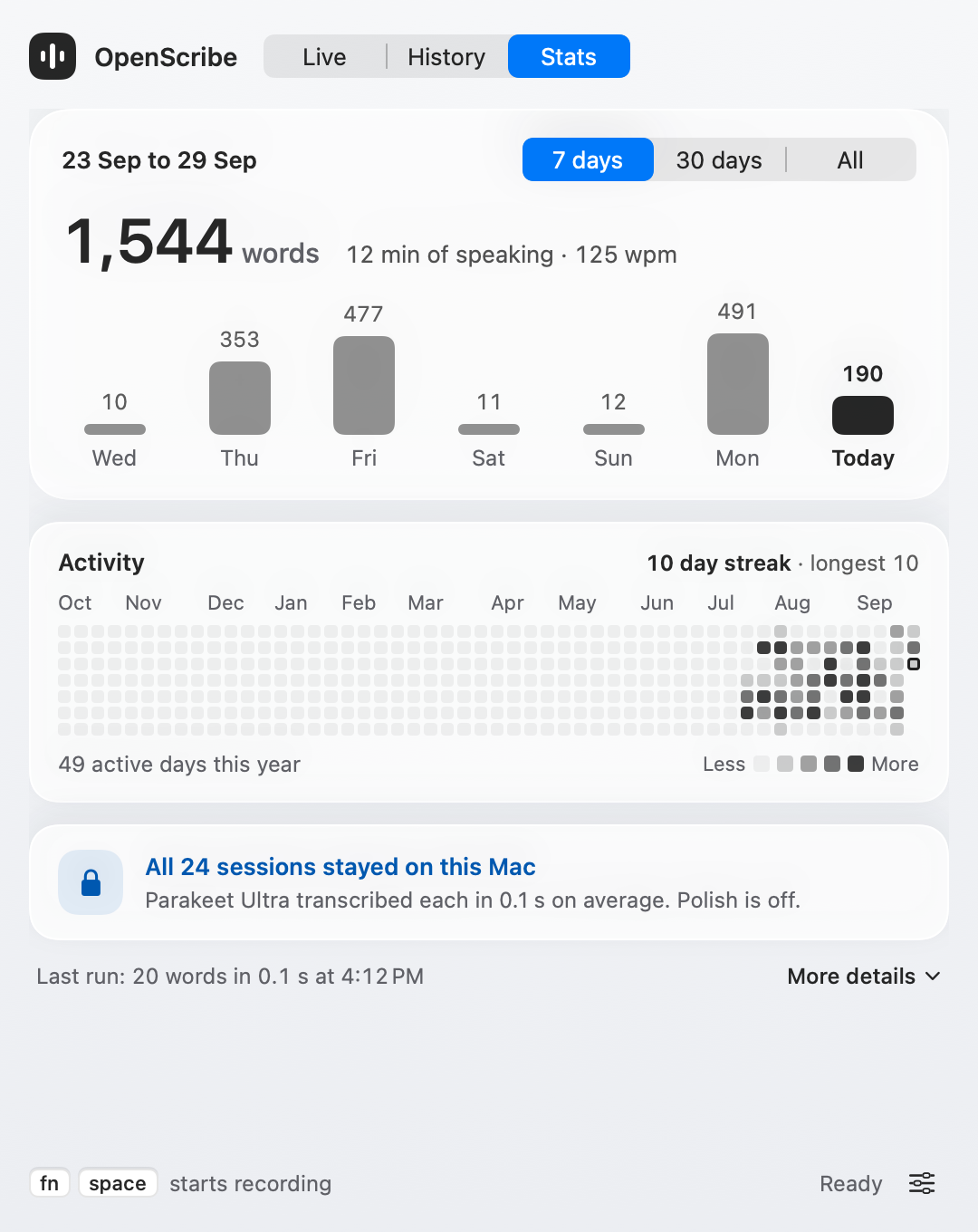
The Stats tab shows how much you dictated in the last 7 days, 30 days, or all time, with speaking time and pace. Activity shows a year of dictation days with your streak, and Where your words went counts sessions that stayed on this Mac or used the cloud. More details lists all-time totals and the models you use most.
Settings window
You can open Settings from the right-click menu, with Cmd + , when OpenScribe is focused, or with the configured Open Settings hotkey.
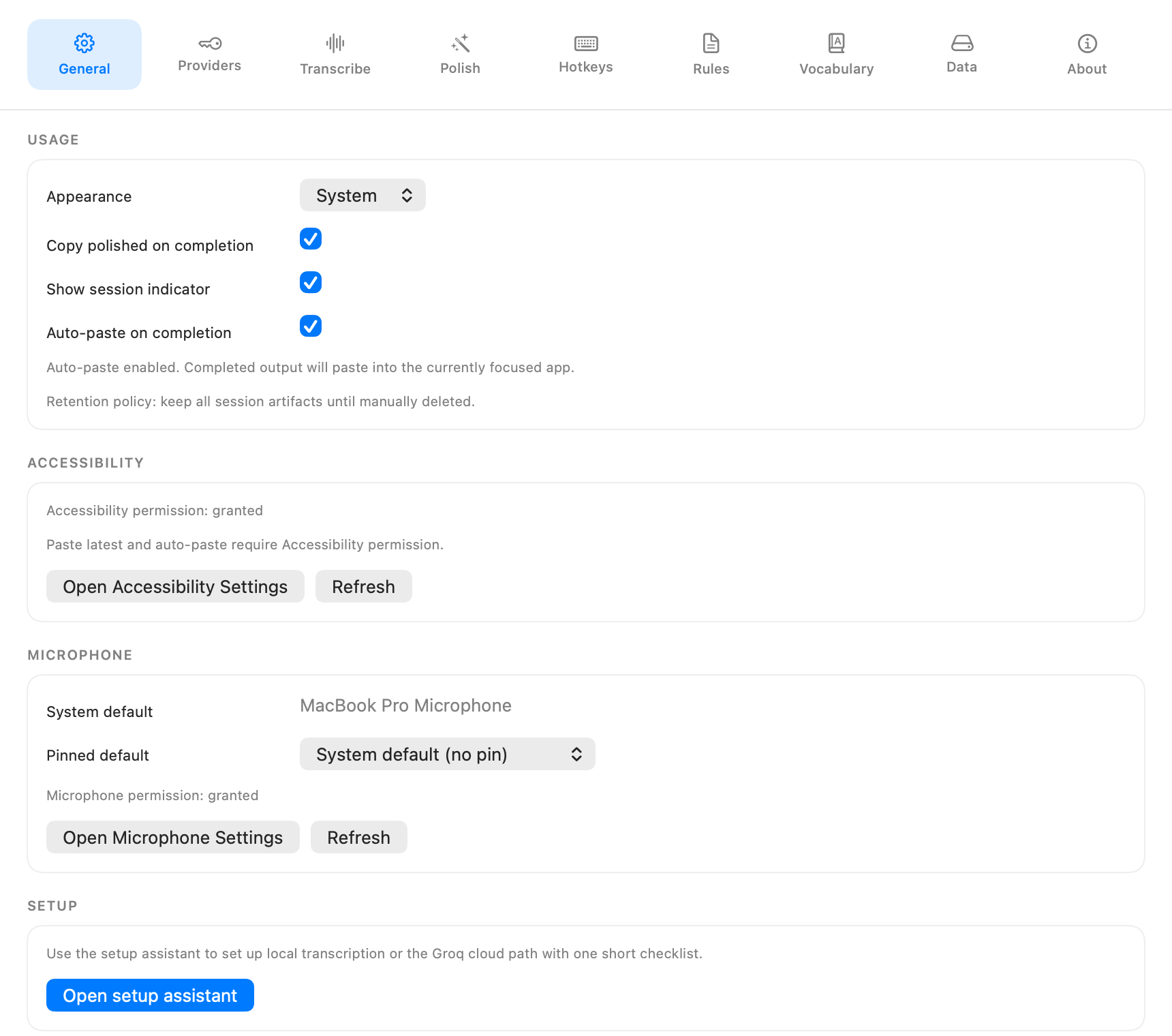
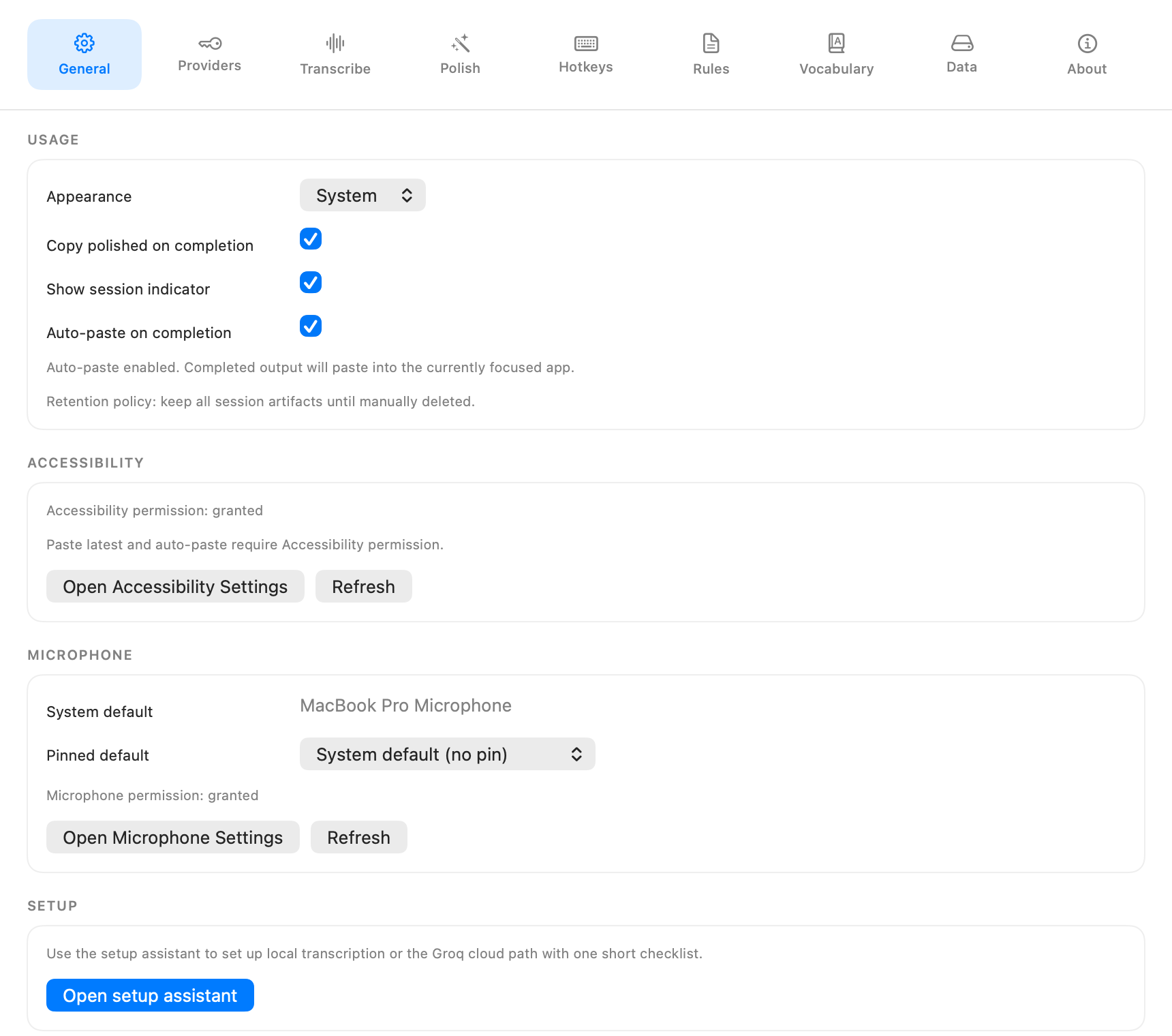
General
- Appearance mode.
- Copy polished on completion.
- Auto-paste on completion.
- Accessibility permission status and controls.
- Microphone selection and permission controls.
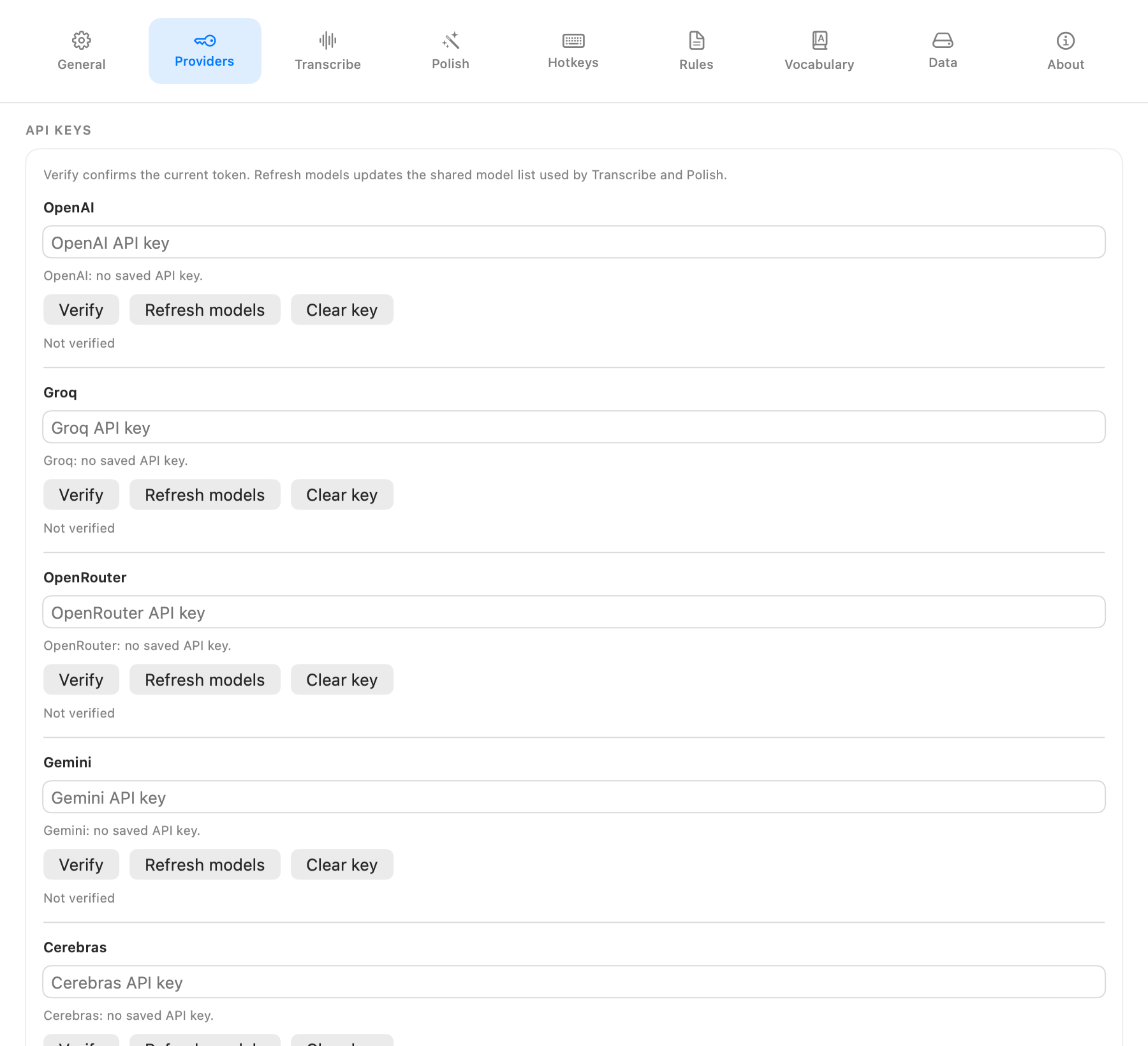
Providers
- API key management for OpenAI, Groq, OpenRouter, Gemini, and Cerebras.
- Verify the current token for each provider.
- Refresh shared provider model lists used by Transcribe and Polish.
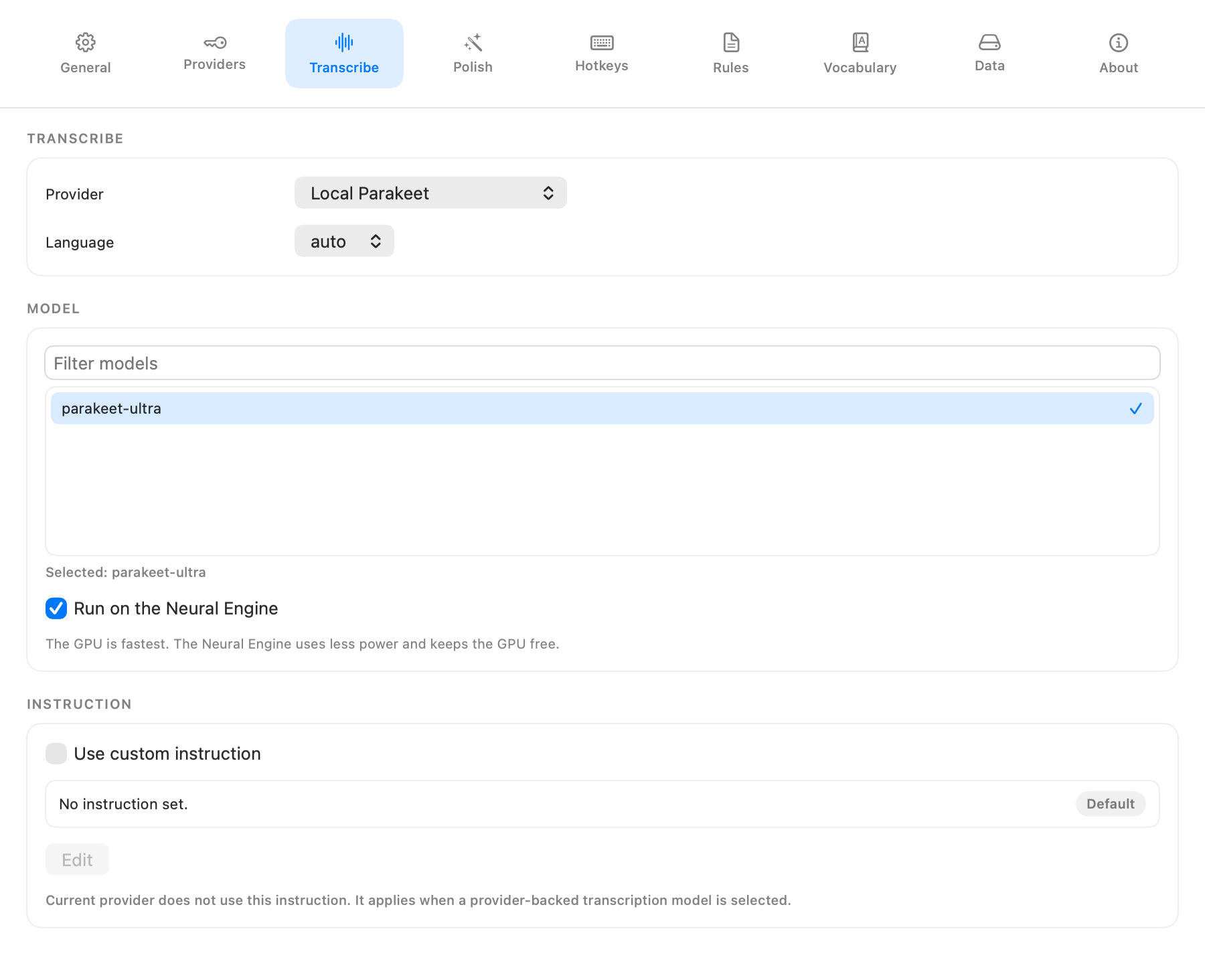
Transcribe
- Transcription provider selection.
- Full-width transcription model browser.
- Run on the Neural Engine toggle when Local Parakeet is selected.
- Language mode.
- Optional custom transcription instruction.
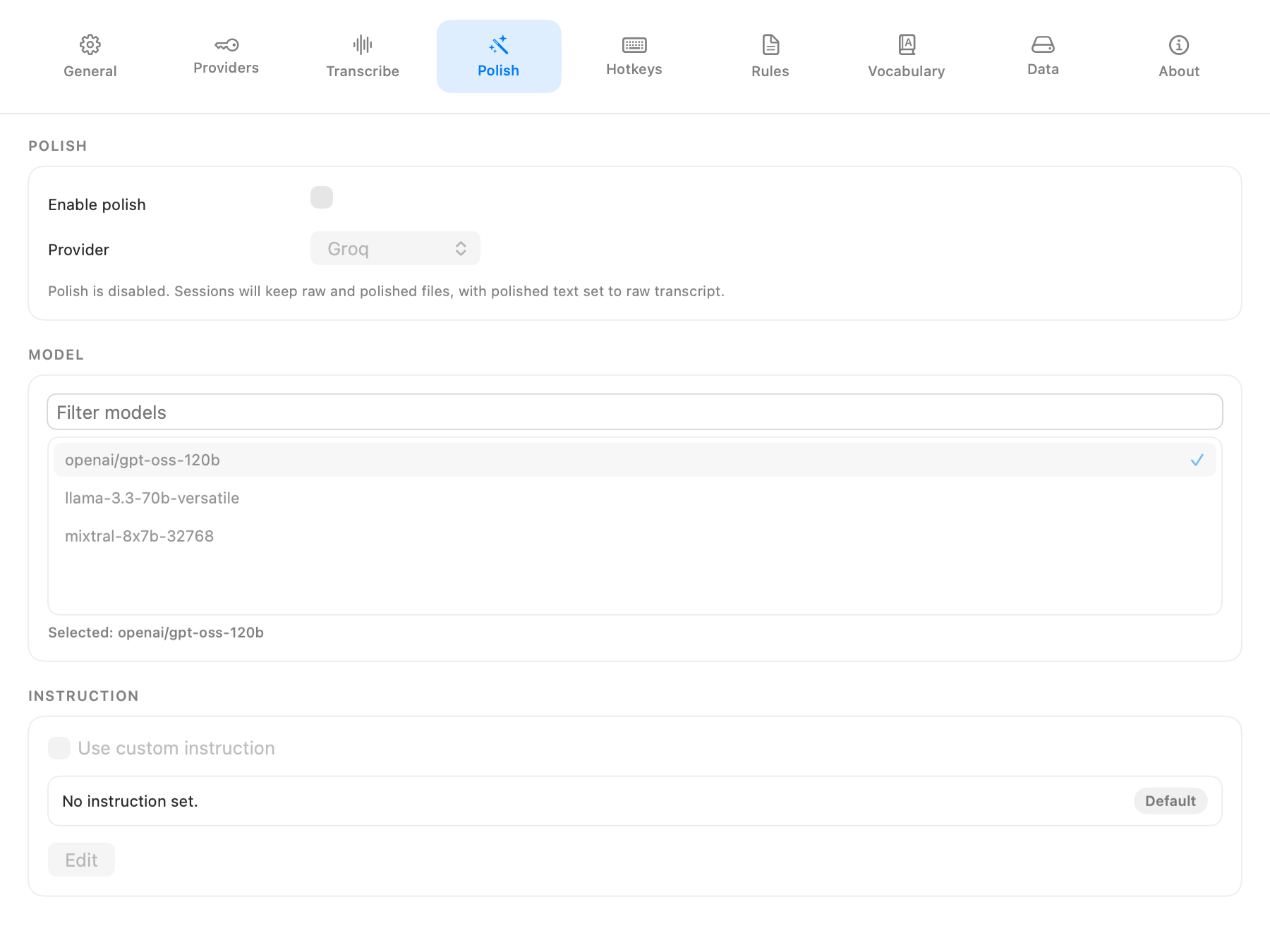
Polish
- Enable or disable polish.
- Polish provider.
- Full-width polish model browser.
- Optional custom polish instruction.
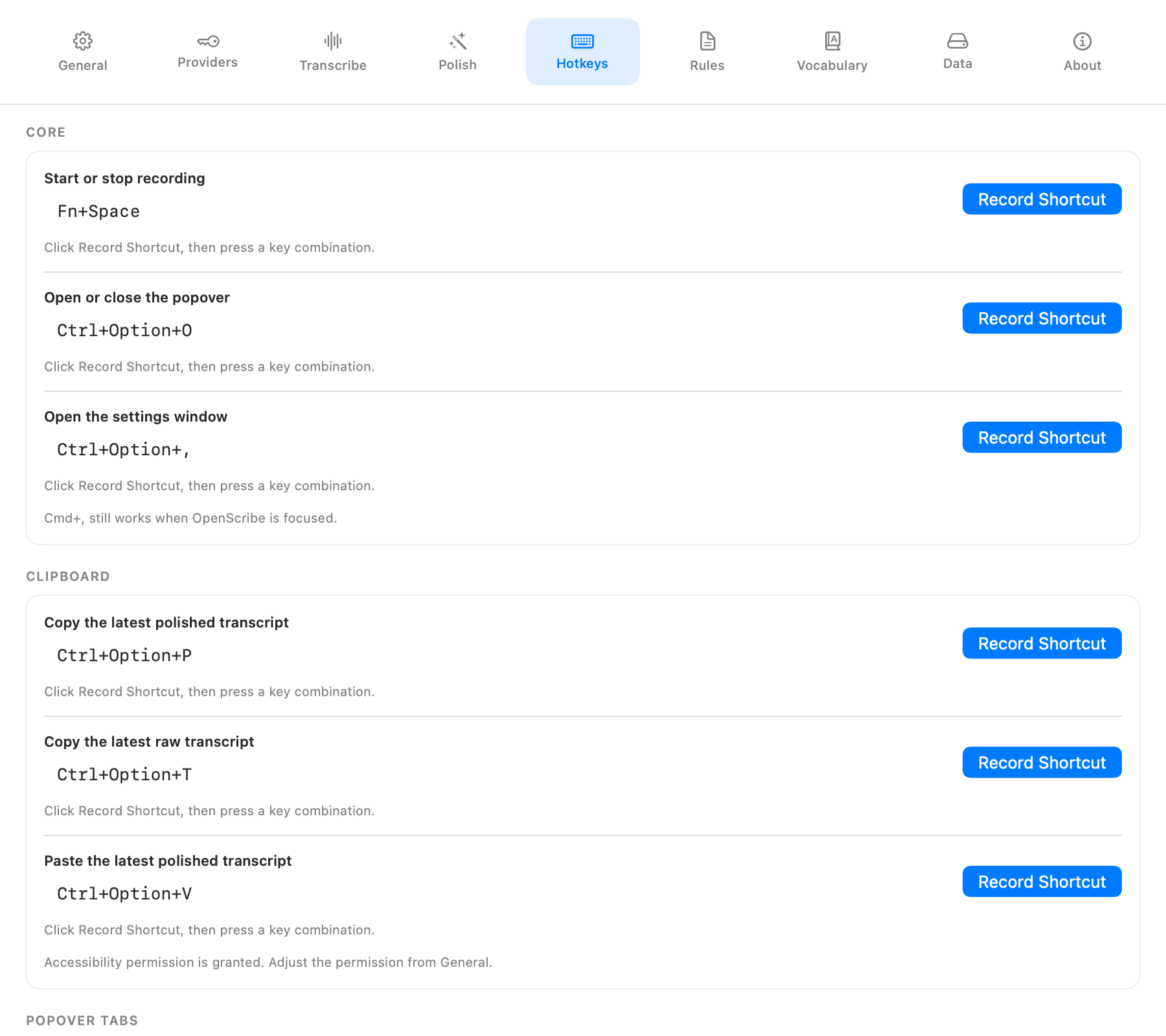
Hotkeys
- Core shortcuts for recording, the popover, and settings.
- Clipboard shortcuts for copy latest, copy raw, and paste latest.
- Paste latest Accessibility dependency note.
- Popover tab shortcuts.
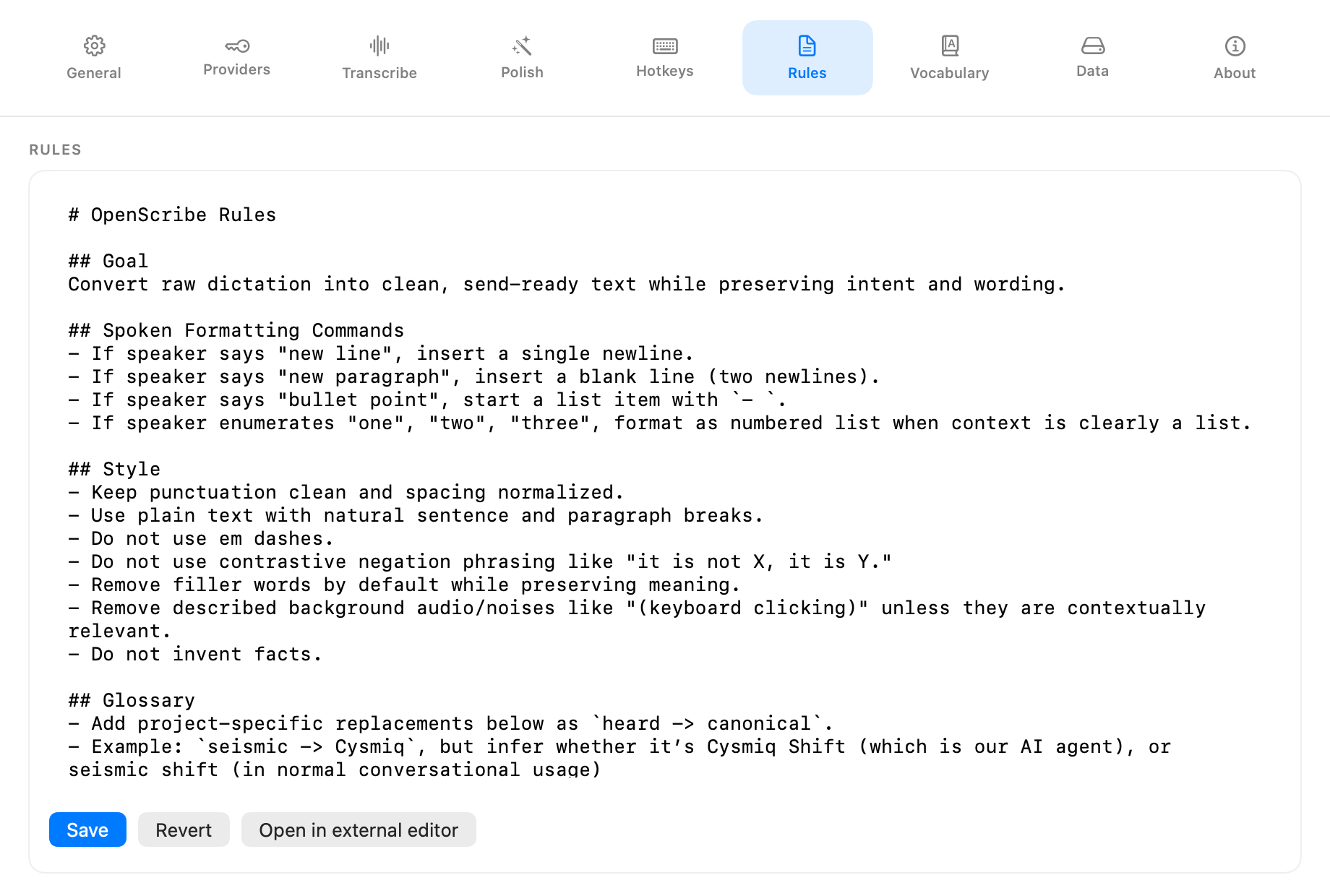
Rules
- Edit the rules markdown used by polish.
- Save, revert, or open rules in an external editor.
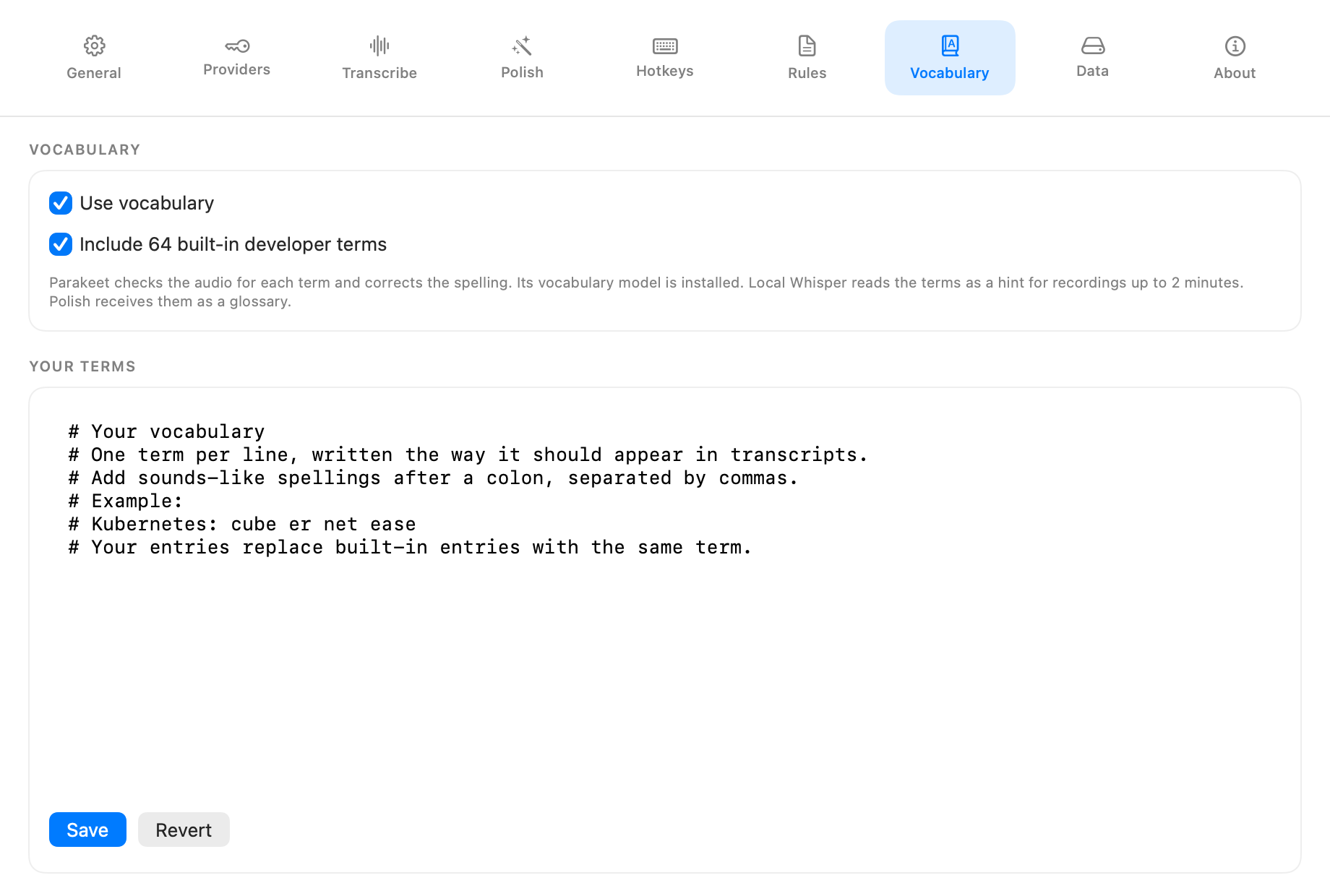
Vocabulary
- Turn vocabulary on or off, and include or exclude the built-in developer terms.
- See how each engine uses the list and whether Parakeet's vocabulary model is installed.
- Edit your own terms, then save or revert.
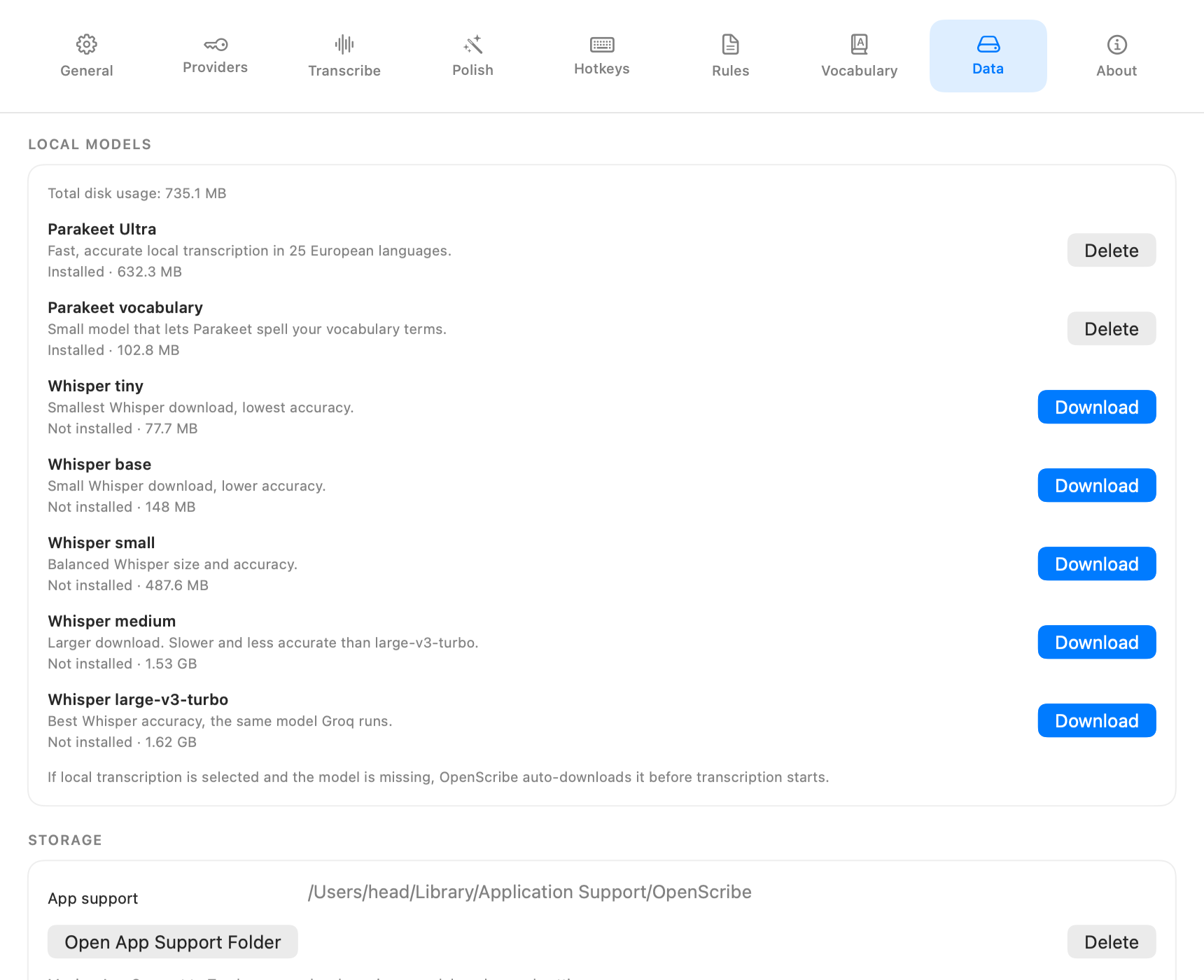
Data
- Install and delete local models for Parakeet and whisper.cpp.
- View model disk usage.
- Open the App Support folder.
- Move App Support data to Trash.
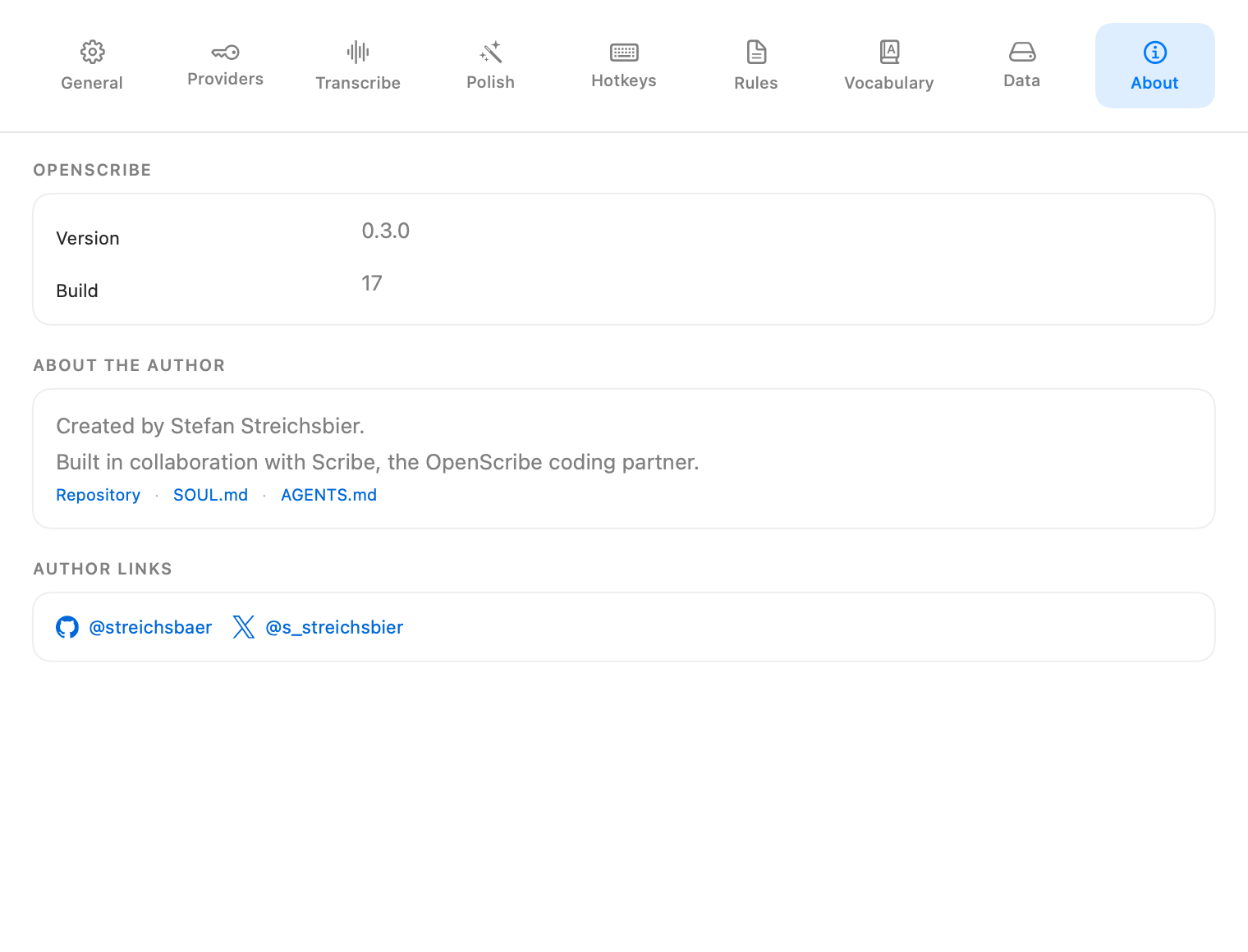
About
- App version and build.
- Current provider selections.
- Repository and governance links.
Related docs
- First run and daily workflow: Getting Started
- Pipeline walkthrough: How It Works
- Product behavior contract: Product Spec
- Popover interaction details: Popover Contract